

Using a dual screen HDMI cable makes it easier to expand your workspace and enjoy smoother multitasking without complicated setups. Many people prefer this simple connection because it delivers clear video, stable performance, and quick plug-and-play control. When you combine it with a dual monitor setup, you can manage more tasks at once, view content side by side, and boost your efficiency in everyday work. A reliable cable also helps you connect different display ports (HDMI, VGA, DVI, DisplayPort) without needing multiple adapters. Whether you’re upgrading your home office or improving entertainment, a good HDMI dual display cable offers flexibility, comfort, and better screen management.
Understanding How Dual Monitors Work
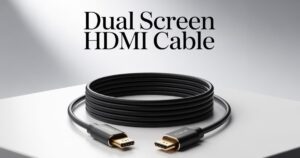
A dual monitor setup works by sending separate video signals from your computer to two different monitors. Your PC or laptop must support a multiple monitor configuration, meaning it should have enough video output ports such as display ports (HDMI, VGA, DVI, DisplayPort) to power two screens at the same time. The operating system then controls how these monitors work, and this allows you to use extended desktop mode or duplicate display mode depending on what you need.
Many people also wonder how daisy chaining monitors works. Daisy chaining is possible when using DisplayPort MST technology, which lets you link monitors in a chain. However, HDMI does not support daisy chaining, so users must follow different methods like HDMI splitters or docking devices. The important part is to understand how each connection type sends a signal, so the screen arrangement works correctly and provides a smooth multi-screen workspace for everyday tasks.
What You Need Before Setting Up Dual Monitors
Before you connect two monitors, check what type of computer you have and what video ports it includes. Many laptops have only one HDMI port, so users often search for how to set up dual monitors with one laptop or laptop with only one HDMI port. If your device does not have enough ports, you can still add more displays with tools like a USB-to-HDMI adapter, a docking station for dual monitors, or a DisplayPort MST hub depending on your hardware.
It is also important to check your monitors. Every monitor must support the resolution you plan to use. You should confirm the refresh rate, brightness and connection options available. Monitors often include HDMI or DisplayPort, and chosen cables must match the port types. It helps avoid problems like monitors not showing signal or laptop external display not working after setup.
How to Connect Two Monitors to One Computer with HDMI
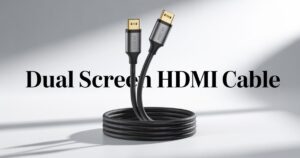
To properly learn how to connect dual screen hdmi cable, first check that your PC supports two video outputs. A desktop usually has a dedicated graphics card with ports for two or more monitors. If both screens have HDMI inputs, simply plug each HDMI cable into the correct ports and turn on the monitors. The system will detect the screens automatically, and this completes the basic hardware connection.
If your device has limited HDMI ports, then users often search for how to use an HDMI splitter for dual monitors. A splitter sends only one signal to two displays, so this works only for mirrored or duplicated screens. For an HDMI dual display that supports extended mode, a splitter will not work. Therefore users must use alternatives such as adapters or a docking device to ensure the computer can send separate video signals to each monitor.
HDMI Splitter vs True Dual Monitor Devices
| Feature | HDMI Splitter | Docking Station / MST Hub |
| —————————– | ————- | ————————- |
| Supports extended display? | No | Yes |
| Sends separate video signals? | No | Yes |
| Good for gaming? | No | Yes |
| Best for dual monitors? | No | Yes |
Setting Up Dual Monitors in Windows and Mac
After connecting your monitors, you must configure the screens in the operating system. Many users search for steps to configure dual monitors in Windows or how to extend displays in Windows, because Windows offers many display controls. You can open Windows display settings and change orientation, set which monitor is the main display, and adjust resolution. This is also where you select duplicate display mode or extend the desktop when creating a more productive screen layout.
For Apple users, steps to configure dual monitors on Mac are clear and simple. Open macOS display settings, choose arrangement, and position the screens by dragging them into place. macOS also allows you to adjust screen resolution settings, brightness, color profiles, and even simplify your monitor arrangement settings. In both systems, you can improve clarity by controlling refresh rate adjustment for smooth performance.
Using HDMI Splitters, Switches, and Docking Stations
Many people get confused when deciding between an HDMI splitter setup, a switch, or a docking station for dual monitors. A splitter duplicates one signal onto two screens. It is not designed for extended desktop mode and cannot create a true dual monitor experience. A switch is used when you want multiple input sources to connect to one screen, so it does not help when you want two monitors.
The best option for most people is a docking device. A docking station includes multiple video ports and supports laptops with limited hardware. This is why many ask for the best way to connect two monitors to a laptop when their device supports only one HDMI port. Docking stations convert USB-C or Thunderbolt into multi-display output, which helps users build a complete multi-display productivity setup without compatibility issues.
How to Use an External Monitor as Your Primary Display
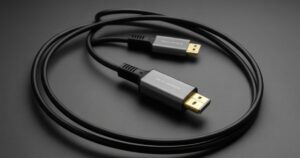
Many users want to set an external monitor as the main display when using a laptop with the lid closed. This helps create a cleaner workspace and makes it easier to work with larger screens. To switch the main display in Windows, open the display control panel and select the screen you prefer as your main device. macOS uses a similar process where you move the white menu bar onto the desired display.
This improves comfort and ergonomics. Productivity increases when users place the primary screen directly in front of them. If needed, you can adjust scaling, brightness and adjust screen orientation Windows/Mac to match your preferred layout. When properly configured, the external monitor as the primary display behaves like the main engine of your computer experience.
Wireless Alternatives for Dual Monitor Setup
If you do not want to deal with cables, you can explore wireless alternative to HDMI monitors.Modern laptops offer wireless screen projection through technologies like wireless display adapter, Miracast connection, or Miracast dual monitor setup. These allow you to project your screen wirelessly to external monitors. Though wireless connections may have slight delays, they provide easy mobility.
Apple users can try AirPlay monitor setup which mirrors or extends Mac displays to a compatible Apple device. While this is less stable for heavy workloads, it is still ideal for presentations, classrooms, or simple extended use. Wireless setup is not suitable for gaming or high-performance tasks but works perfectly for light office work or streaming.
Troubleshooting Common Dual Monitor Problems
Dual monitors sometimes fail to work as expected. Users often search why the second monitor is not detected, or why their monitor is not showing signal even after plugging in the cable. Common causes include loose cables, outdated graphics drivers, bad HDMI ports, or wrong resolution settings. Updating drivers or changing ports often fixes the issue.
More advanced solutions include checking hardware compatibility, refreshing the display settings, or resetting GPU control panels. These steps help solve dual monitor troubleshooting
tasks. When a laptop external display is not working, switching to a different cable, adapter, or port also helps identify what caused the failure. Many problems come from mismatched refresh rates or cable standards that cannot support the selected resolution.
Tips to Improve Your Dual Monitor Experience
To create a smooth multi-screen workspace, you must arrange screens properly for comfort. It helps to match the height of both monitors and place the main display directly in front. Users can also adjust color temperature, brightness and scaling according to the room lighting. Limit the number of programs set to open automatically to avoid clutter and improve performance.
Another useful tip is keeping the operating system fully updated. A simple graphics driver update can fix flickering screens, lag, or black screen errors. Matching cables with the correct version of HDMI or DisplayPort also ensures smooth performance in every multi-display productivity setup. With the right arrangement and tuning, dual monitors can transform your workflow dramatically.
Conclusion
Learning how to connect two monitors to one computer using HDMI is one of the easiest ways to improve your workspace, boost productivity, and create a smoother workflow whether you use a laptop or desktop. Once you understand how dual screen hdmi cable works, what ports your computer supports, and which tools you need, setting up a reliable dual monitor setup becomes simple. From using HDMI ports and adapters to choosing docking stations and wireless options, there are many ways to build a setup that fits your needs.
Whether you want an extended desktop for multitasking, a duplicated display for teaching, or a complete multi-screen workspace for work, configuring monitors in Windows or macOS takes only a few quick steps. With the right settings and troubleshooting tips, your monitors will run smoothly and deliver a comfortable viewing experience every day. A proper dual monitor configuration is one of the best long-term upgrades you can make, and now you have everything you need to set it up confidently and correctly.
FAQs
Q-Can HDMI support dual monitors?
Yes, HDMI can support dual monitors, but only if your device has multiple HDMI ports or you use a docking station or adapter that supports extended display.
Q-to connect 2 screens to 1 HDMI?
You can connect two screens to one HDMI port by using a docking station, USB-to-HDMI adapter, or DisplayPort MST hub since a basic splitter won’t extend displays.
Q-Can HDMI be split into two screens?
A standard HDMI splitter can only duplicate the display, not extend it. For two separate screens, you need a device that supports dual extended monitors.
Q-Do I need a special cable for dual monitors?
Yes, you need either two separate HDMI cables or a docking station/adapter that supports extended dual displays; a regular HDMI cable can’t handle two screens alone.
Q-How to extend the display to 2 monitors?
Connect each monitor to your computer through supported ports, then open Display Settings and select “Extend these displays” to use both screens independently.
Q-Won’t my second monitor connect via HDMI?
This usually happens due to a loose cable, wrong input source, outdated graphics drivers, or using a splitter that only mirrors displays instead of extending them.
Meta Description
Easily expand your workspace with a dual screen HDMI cable for clear, stable, and seamless dual monitor display on any laptop or desktop.



Hey there, I was wondering if you took guest posts on techbeyonds.com? If so, how would I go about getting one on your site? If there is a fee, let me know.
Also, if you have any other sites you can get me a post on please list them.
Thanks
Justin