What Are HDMI and DisplayPort? (Basic Overview)
Connecting modern displays can feel confusing when you’re comparing dp to hdmi vs hdmi to dp, especially because each direction works very differently. Many people assume both conversions are the same, yet the signal flow, hardware requirements, and performance limitations vary a lot between them.
When you plug in different adapters, you’ll notice changes in image stability, refresh rates, and audio support. Understanding how these two paths work helps you avoid flickering screens, compatibility errors, and wasted money. As you explore options, you’ll also learn how active adapters, DisplayPort Dual-Mode, 4K output , and video interface standards shape the real-world experience across PCs, monitors, and TVs.
Key Differences Between HDMI and DisplayPort
In dp to hdmi vs hdmi to dp Each port works in a different way. DisplayPort supports high refresh rate monitors and Adaptive Sync support, which helps smooth gameplay. HDMI supports entertainment features like HDMI ARC and eARC and HDMI CEC control. DisplayPort is better for multi-monitor setups because it works with DisplayPort MST (Multi-Stream Transport). HDMI is better for home theaters because TVs dominate that format.
New versions changed performance. HDMI version 2.0 / 2.1 added huge bandwidth increases. DisplayPort version 1.4 / 2.0 improved high-resolution performance and made DisplayPort advantages for gaming clear for many users. The table below shows the key numbers that matter for a proper DisplayPort vs HDMI comparison.
Key Feature Technical Comparison
| Feature | HDMI | DisplayPort |
| ——————— | —————— | —————— |
| Main Use | TVs, Consoles | PCs, Monitors |
| Max Bandwidth | Up to 48Gbps (2.1) | Up to 80Gbps (2.0) |
| Multi-Monitor Support | No | Yes (MST) |
| Audio Return | ARC/eARC | No ARC |
| Daisy Chain | No | Yes |
Devices Commonly Use HDMI and DisplayPort?
Many people ask which devices support HDMI, and the answer is almost everything in your home. USA televisions, gaming consoles, cable boxes, and projectors rely on HDMI for easy setup. HDMI dominates living rooms thanks to HDMI widespread usage over two decades. Even many laptops in the USA ship with HDMI because users connect to TVs often.
People ask which devices use DisplayPort, and the answer mostly includes PCs. Gaming monitors prefer DisplayPort because of high refresh rate monitors, Adaptive Sync support, and smooth frame delivery. Most graphics cards ship with DisplayPort because creators need stable monitor connectivity options for editing, design, and data work.
DisplayPort Versions vs HDMI Versions (Comparison Table)
Different versions confuse many users. HDMI version 2.0 / 2.1 improved frame rates and added strong 8K and 4K display support for TV users. DisplayPort followed with DisplayPort version 1.4 / 2.0, offering high-bandwidth performance. People often ask what is the best version of HDMI to use, and 2.1 is the answer for new TVs.
DisplayPort 2.0 is ideal for extreme PC gaming and multi-monitor computing. These numbers matter for users comparing HDMI input vs DisplayPort output, especially when buying new screens. The table below helps USA buyers choose the right cable.
Version Comparison Table
| Version | Max Resolution | Key Strength |
| ——– | ————– | —————— |
| HDMI 1.4 | 4K 30Hz | Basic TV use |
| HDMI 2.0 | 4K 60Hz | Standard modern TV |
| HDMI 2.1 | 8K 60Hz | Best home theater |
| DP 1.4 | 4K 144Hz | Smooth gaming |
| DP 2.0 | 8K 165Hz | Extreme PC setups |
Can You Use HDMI and DisplayPort Interchangeably?
Many people ask Can I connect HDMI to DisplayPort, and the answer is tricky. You cannot simply swap them because they use different signal types. You need the right adapter, and sometimes that adapter must be powered. Every case depends on how the device sends the signal.
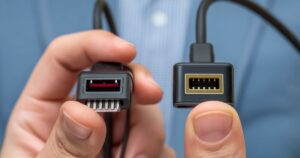
People must check ports because How to identify HDMI and DisplayPort ports confuses new buyers. DisplayPort has an angled corner while HDMI is more rounded. If your screen only accepts HDMI and your computer sends DisplayPort, you must use a proper converter so the video and audio transmission interfaces work correctly.
HDMI to DisplayPort Conversion
Converting HDMI to DP requires active electronics. This is why you need an HDMI to DisplayPort adapter with external power. Many users buy the wrong product and fail to get a signal. Understanding Active vs passive adapters helps prevent issues because passive ones only work in DP-to-HDMI direction.
USA users connect PCs to monitors often, and sometimes their GPUs only offer HDMI. If they want a DisplayPort monitor, they need a powered unit. This is why the phrase How to use adapters for HDMI and DisplayPort always appears online. Buyers must choose carefully, especially when dealing with higher resolutions.
DisplayPort to HDMI Conversion
DisplayPort converts to HDMI more easily because of DP++. Many users even buy a DisplayPort to HDMI converter without understanding this feature. DP++ lets the graphics card send HDMI signals directly through DisplayPort, so the adapter does almost nothing except change the shape of the plug. This explains why many adapters are cheap.
However you must remember that some devices lack DP++, especially older business machines. Understanding DisplayPort MST for multiple monitors helps users avoid mistakes. MST does not work through HDMI adapters, and users often misunderstand this when planning a multi-screen office setup.
Common Issues in HDMI ↔ DisplayPort Conversion
The biggest problems come from mismatched resolutions and refresh rates. Every USA gamer sees flickers, black screens, or picture drops because adapters fail under high loads. People often blame their screens when the real cause is an adapter that cannot handle 8K and 4K display support.
HDCP handshake problems also appear. Many people ask what HDCP protection is, and the answer is simple. HDCP protects digital content from being copied. A bad adapter will break this handshake which stops apps from showing video. Streaming services in the USA depend on HDCP content protection, so you need the right device.
Does DP or HDMI Support Audio?
People ask Can I connect HDMI to DisplayPort or Do DisplayPort cables carry audio, and the answer is yes to audio support. HDMI always carried sound from the start. DisplayPort also carries sound and supports high-end audio formats. Both can send audio to TVs, soundbars, or receivers easily.
Some users ask Can HDMI transmit audio, and it always could. HDMI 2.1 added eARC which supports full home-theater audio. DisplayPort cannot return audio like ARC but still works well with PC speakers. The difference matters when setting up a gaming PC with external audio systems.
HDCP & Content Protection on HDMI and DisplayPort
HDCP prevents copying of protected video streams. Hollywood requires this for USA streaming services, Blu-ray, and cable TV boxes. HDMI and DisplayPort handle HDCP differently because they target different markets. Many adapter issues come from this protection layer, not from cables.
Some devices do not support the latest HDCP rules which cause black screens when streaming. New HDMI 2.1 TVs support HDCP 2.3, while many DisplayPort devices still use older versions. This mismatch disrupts Connecting PC to TV via HDMI or DisplayPort, especially when watching 4K movies.
HDR, VRR, G-Sync & FreeSync Support on HDMI vs DisplayPort
Both standards support HDR, so the answer to Do both interfaces support HDR is yes. However HDR performance varies because DisplayPort often supports higher bandwidth which helps color depth. HDMI 2.1 improved HDR for TVs, so home theaters perform better through HDMI.
Gamers look at variable refresh features like G-Sync, FreeSync, and DisplayPort Adaptive Sync for gaming. DisplayPort still leads with smoother performance for PC gaming. HDMI 2.1 improved VRR for consoles, so TVs benefit more. Choosing a port depends on the target device.
How to Check If Your Device Has HDMI or DisplayPort Ports
People ask How to identify HDMI and DisplayPort ports, and shape is the easiest clue. HDMI looks like a flatter trapezoid while DisplayPort has one angled corner. Laptops often label ports with small icons. Manuals and manufacturer websites help confirm the correct port type if confusion remains.
USA PCs also show port types on the GPU itself. New graphics cards include multiple DisplayPort ports and at least one HDMI port. Checking device specs helps avoid buying the wrong cables or adapters. Taking time to confirm ports solves most setup problems.
Can You Use HDMI and DisplayPort Together on One Device?
You can usually mix HDMI and DisplayPort on modern GPUs. Each port works independently which helps users build multi-monitor setups. People often forget that DisplayPort daisy chaining only works through DisplayPort and not HDMI. This matters for large USA office installations.
Some devices limit how many screens they support at once. Even when using both ports, the GPU has a maximum display count. Understanding these limits helps USA users build reliable setups without unexpected failures while switching between work and gaming.
When Should You Choose HDMI, and When Should You Choose DisplayPort?
HDMI is ideal for TV-based home entertainment. It offers strong HDR, eARC sound return, and wide device compatibility. That is why users look for HDMI compatibility with TVs when buying new hardware. USA living rooms rely heavily on HDMI for movies, streaming, and console games.
DisplayPort is best for high-frame-rate PC monitors. Gamers choose it because of strong DisplayPort resolution support and smooth VRR. When asked When to use DisplayPort over HDMI, the answer is simple. Use DisplayPort for fast monitors and HDMI for large TVs.
Conclusion
Both ports matter in modern setups.If we see dp to hdmi vs hdmi to dp HDMI serves USA homes extremely well, and DisplayPort remains the best choice for PC gaming and multi-monitor work. Understanding HDMI input vs DisplayPort output empowers buyers to build better systems and avoid adapter problems.
FAQs
Q-1 Is DisplayPort to HDMI better than just HDMI?
A DP port to-HDMI setup isn’t better than using a direct HDMI connection. A direct HDMI cable gives the most stable signal because it avoids conversion. Using an adapter works fine for most people though it doesn’t offer any extra benefits over a normal HDMI connection.
Q-2 Does DP to HDMI lose quality?
A good DP-to-HDMI adapter usually doesn’t lose quality for 1080p or 1440p screens. At 4K you may see limits depending on the adapter because some models cap the refresh rate. Active adapters work better for higher resolutions and help reduce quality loss.
Q-3 Is it better to use DP than HDMI?
DisplayPort is better for gaming monitors because it supports higher refresh rates, Adaptive Sync, and daisy chaining. HDMI is better for TVs and home entertainment setups. The best choice depends on what your device supports.
Q-4 Is it okay to use DP to HDMI?
Yes, it’s okay to use DP to HDMI as long as you use a reliable adapter. It works well for connecting a PC to a TV or a second monitor. Just remember that some cheap adapters struggle with 4K or high refresh rates.
Q-5 Do pros use DP or HDMI?
Most professional gamers and creators use DP because it supports higher bandwidth and stable high refresh rates. Video editors often use DP too. Home users and TV watchers typically use HDMI because it’s common on consumer electronics.
Q-6 What problems can occur with DisplayPort to HDMI?
Common problems include screen flickering, limited refresh rates, no audio, adapter incompatibility, and issues when converting 4K signals. These problems usually happen when using passive or low-quality adapters or when the device doesn’t fully support DP++ features.
Meta Description
Clear guide on dp to hdmi vs hdmi to dp, differences, compatibility, and performance so you choose the right adapter for your setup.