Understanding how to turn off Samsung S24 is important for users who want quick control over their phone, especially with Samsung’s updated button layout and new software features. Many people get confused when the side key launches Bixby instead of the power menu, which makes shutting down feel more complicated than it should be.
Learning the right methods helps you power off the device smoothly, restart it when needed, and avoid mistakes that may affect performance. Whether you prefer using physical buttons or on-screen tools, this guide explains every option clearly. It also covers solutions for Samsung S24 power off, Galaxy S24 restart, side key function, forced restart, and Quick Settings power menu.
Why Turning Off Samsung S24 Seems Complicated
The question is “How to Turn Off Samsung S24“.Samsung changed how the side button works on most newer Galaxy models, including the S24 series. Instead of functioning only as a power button, the Side Key now activates Bixby when you hold it down. This causes confusion for users who expect a power menu. Fortunately, Samsung offers multiple shutdown methods, and once you learn them, powering off your phone becomes quick and effortless.
1. How to Turn Off Samsung S24 Using Buttons
This is the simplest method once you get used to it.
To turn off your Samsung S24 using physical buttons, press and hold the Power/Side Key + Volume Down buttons at the same time. Keep them pressed for a couple of seconds until the power menu appears. From there, tap Power Off, then confirm to shut down the device. If you want to restart instead, simply choose Restart. This button combination works even if Bixby is enabled on your phone.
2. How to Turn Off Samsung S24 Using Quick Settings
If you don’t want to use buttons, Samsung provides an easy on-screen option.
Swipe down from the top of your screen to open the Quick Settings panel. Once it appears, swipe down again to expand it fully. At the top corner, you’ll see a Power icon next to the settings gear. Tap this icon to launch the power menu. From there, select Power Off or Restart. This method is convenient when your buttons feel uncomfortable to press or if your phone is in a case.
3. How to Turn Off Samsung S24 by Customizing the Side Key
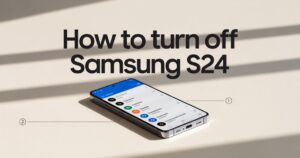
You can turn your Side Key back into a classic power button.
Go to Settings > Advanced Features > Side Key. Under the “Press and Hold” option, change Bixby to Power Off Menu. Once enabled, holding the side button will open the power menu—just like older Samsung or other Android phones. This is the best long-term solution if you frequently shut down or restart your phone.
4. How to Turn Off Samsung S24 When Frozen (Force Shutdown)
If your Samsung S24 becomes unresponsive, the regular methods won’t work.
To force shutdown your frozen device, press and hold the Power/Side Key + Volume Down buttons together for about 10–15 seconds. The phone will power off and automatically restart. If it doesn’t restart on its own, press the Side Key again to turn it back on. This method is safe and won’t erase any data.
5. How to Turn Off Samsung S24 Without Buttons
You may want to shut down your phone without pressing buttons, especially if they’re damaged.
Use “Bixby Voice” by saying:
“Hey Bixby, turn off my phone.”
Or open Settings, use the search bar, and type “Power.” You’ll see shortcuts to the power menu. Samsung also allows creating accessibility shortcuts if you want even easier access without physical keys.
6. How to Restart Samsung S24 Instead of Turning It Off

If your phone is slow, glitching, or apps are crashing, a restart is more helpful than turning it off completely. Open the power menu using any method above and tap Restart. This refreshes your system without shutting it down fully.
Conclusion
Even though Samsung changed how the Side Key works on the S24, learning **how to turn off Samsung S24** is simple once you know the available options. You can use a button combination, Quick Settings, voice commands, or even customize your Side Key for maximum convenience. Whether you need to restart your device for performance reasons or power it off entirely, this guide covers all the methods you’ll ever need, making your Samsung S24 easier and more intuitive to use.
FAQs
Q1-How do you turn off a Samsung Galaxy S24?
To turn off a Samsung Galaxy S24, press and hold the Side Key + Volume Down buttons together for about two seconds. This opens the power menu, where you can tap Power Off. Alternatively, swipe down the Quick Settings power menu and tap the power icon to shut down without using buttons.
Q2-Where is the power button on Samsung S24?
The power button, also called the Side Key, is located on the right edge of the Samsung S24. By default, a long press opens Bixby, so you may need to use the Volume Down + Side Key combo to access the power menu.
Q3-How do I manually turn off my Samsung?
You can manually turn off your Samsung by using the physical button combination or the software menu. Press Side Key + Volume Down together, or swipe down the Quick Settings panel and tap the Power icon to access shutdown options.
Q4-Why can’t I turn my Samsung phone off?
If your Samsung phone won’t turn off, it may be because Bixby is enabled, you are pressing the wrong buttons, or the device is frozen. Try the Volume Down + Side Key combo, use the Quick Settings power menu, or perform a force restart if needed.
Q5-Why is my phone not turning off when I press the power button?
On newer Samsung phones like the S24, a single press of the Side Key may launch Bixby instead of opening the power menu. Use the Volume Down + Side Key combo or adjust your Side Key settings to restore the classic shutdown function.
Q6-How do I turn off my Samsung A24?
To turn off a Samsung A24, press and hold the Side Key + Volume Down buttons together until the power menu appears. Then tap Power Off. You can also swipe down the Quick Settings panel and use the Power icon to shut down without using buttons.
Meta Description
Learn how to turn off Samsung S24 quickly using buttons or software options. Follow simple steps to power off or restart your phone easily.