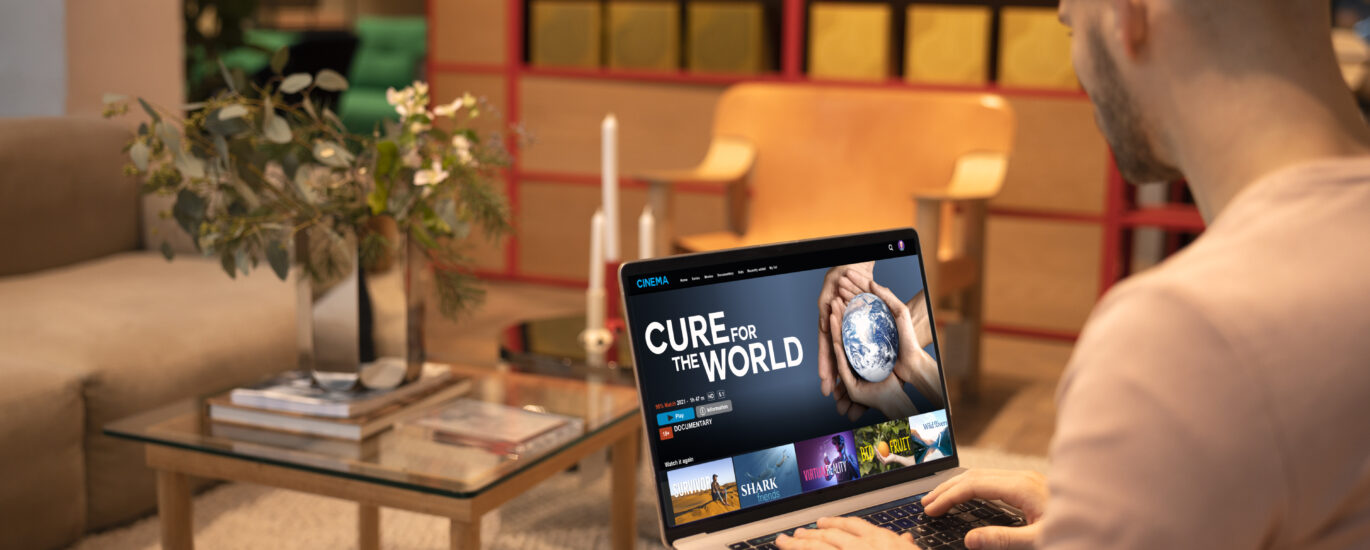
Connecting your laptop to your TV is an easy way to enjoy movies, games, and online content on a much bigger screen. Many people ask, how do I connect my laptop to my TV, and the good news is that there are several simple methods you can use.
You can choose a wired laptop-to-TV connection for the best stability, or try wireless screen mirroring if you prefer to avoid cables. Modern laptops and smart TVs support different options like HDMI cable types, screen-casting apps, and built-in streaming features. Understanding these choices helps you pick the best way to connect both devices quickly and without confusion.
Understanding Laptop-to-TV Connections
Before connecting your laptop to your TV, it’s important to understand the types of connections available. The right choice depends on your laptop model, TV ports, and the type of content you want to display.
Wired Connection Types
HDMI (most common, HD & 4K support)
USB-C (DisplayPort Alt Mode) on newer laptops
DisplayPort (common on gaming laptops)
Mini HDMI / Micro HDM (some compact laptops)
VGA (older laptops/TVs – limited to 720p/1080p)
Wireless Connection Types
Miracast (Windows laptops + many smart TVs)
Apple AirPlay (MacBooks + Apple TV / AirPlay-enabled TVs)
Chromecast / Google TV
Roku Screen Mirroring
Fire TV Screen Mirroring
Understanding these options makes it easier to choose the ideal method.
The Easiest Method: HDMI Connection
Using HDMI is the simplest and most reliable way to “ how do I connect my laptop to my TV“.
What You Need
HDMI cable (Standard High-Speed or Ultra High-Speed for 4K/120Hz TVs)
An HDMI port on both laptop and TV
Step-by-Step (Windows & Mac)
- Plug one end of the HDMI cable into your laptop.
- Plug the other end into your TV’s HDMI port.
- Turn on your TV and select the HDMI input using the remote.
- On your laptop:
Windows: Press Windows + P → Select Duplicate, *Extend*, or *Second Screen Only*
Mac: Go to **Apple Menu > System Settings > Displays** → Select **Mirror** or **Extend**
Why HDMI Is the Best
No lag
Supports 1080p, 4K, and even 8K
Carries both **video and audio
Works with nearly every TV in the USA
Other Wired Connection Options

USB-C to HDMI (Most Modern Laptops)
If your laptop has a USB-C port with **DisplayPort Alt Mode**, you can use a USB-C to HDMI cable.
Steps
- Connect USB-C to your laptop.
- Connect HDMI end to TV.
- Select HDMI input on the TV.
DisplayPort to HDMI (Gaming Laptops)
Use a DisplayPort-to-HDMI cable or adapter.
VGA (Older TVs/Laptops)
Video only, no audio
Lower resolution
Requires separate audio cable
Mini HDMI / Micro HDMI
Some ultrabooks or tablets require a “mini-to-standard HDMI” cable.
How to Connect Laptop to TV Wirelessly
1. Miracast (Windows Laptops + Smart TVs)
Steps
- On TV → Enable “Screen Mirroring” / “Miracast”.
- On Windows → Settings > System > Display > Connect to a wireless display.
- Select your TV from the list.
Many USA smart TV brands support Miracast: Vizio, Hisense, TCL, Samsung, etc.
2. Apple AirPlay (MacBook Users)
Works with:
Apple TV
AirPlay-enabled smart TVs (Samsung, LG, Sony, Vizio)
Steps:
- On TV → Enable “AirPlay”
- On Mac → Click “Control Center > Screen Mirroring”
- Select your TV
3. Chromecast / Google TV
Great for both Windows and Mac users.
Steps:
- Plug in your Chromecast
- Open Chrome browser
- Click “Cast” → Choose your TV
4. Roku Devices
Most Roku models support screen mirroring for Windows and casting from apps.
Steps:
Enable “Screen Mirroring” on Roku
On Windows → Connect to a wireless display
5. Amazon Fire TV Stick
Fire TV supports Miracast for Windows laptops.
Wireless Accessories for Better Control
To make your wireless experience smoother:
“Wireless keyboard and mouse” for easy navigation
“Bluetooth controllers” for gaming
“Wireless presenters” for slideshows
“Media remotes” for streaming apps
These accessories allow you to control everything from your couch.
Optimizing Your Viewing Experience
Adjust TV Display Settings
Select “Game Mode” for low latency
Choose “PC Mode” for sharper text
Adjust “Brightness, Contrast, Color, Sharpness”
Laptop Display Settings
Set resolution to match the TV (e.g., 1920×1080 or 3840×2160)
Select “Extend Display” for multitasking
Use “Duplicate Display” for simple mirroring
Audio Settings
If sound isn’t coming from the TV:
Windows:Sound Settings → Select TV as output
Mac: System Settings → Sound → Output → Select TV
Troubleshooting Connection Problems

Common Issues & Fixes
- No Signal on TV
Try a different HDMI port
Ensure cable is fully inserted
Change TV input manually
- Audio Not Playing on TV
Change playback device to HDMI
- Wireless Lag/Delay
* Move laptop closer to TV
* Switch to 5GHz WiFi
* Restart router
- Wireless Lag/Delay
Move laptop closer to TV
Switch to 5GHz WiFi
Restart router
. Screen Not Mirroring
Update display drivers
Restart TV and laptop
Use a different method (HDMI, Chromecast)
Advanced Tips for Better Performance
Use “HDMI 2.1” cables for 4K 120Hz
Enable “HDR” if TV supports it
For gaming, use “Game Mode” on TV
Turn off background apps for smoother wireless casting
For Mac users: Use “Sidecar” to connect an iPad as an extra display
Conclusion
” How do I connect my laptop to my tv” article opens up a world of entertainment, work, and gaming on a larger screen. Whether you choose a wired laptop-to-TV connection with HDMI, USB-C, or DisplayPort, or prefer wireless screen mirroring via Miracast, AirPlay, or Chromecast, there’s a solution for every setup. Optimizing your laptop display settings, audio, and TV resolution ensures the best experience. Troubleshooting common issues and using advanced tips like using your TV as a second monitor or enabling Game Mode TV can enhance performance. With the right method, connecting your laptop to your TV is quick, reliable, and completely stress-free.
FAQs
- How do I connect my laptop to my TV wirelessly?
You can connect wirelessly using Miracast, AirPlay, Chromecast, or your smart TV’s built-in casting feature.
- How do I connect my laptop to my TV without HDMI?
Use alternatives like USB-C to HDMI adapters, DisplayPort to HDMI, VGA converters, or wireless screen mirroring.
- Why can’t my laptop connect to TV HDMI?
This usually happens due to a faulty cable, wrong TV input, outdated graphics drivers, or incorrect display settings.
- Can I see my laptop screen on my TV?
Yes, you can mirror or extend your display using HDMI or wireless casting options.
- How do I cast my screen to my TV wirelessly?
Use Miracast on Windows, AirPlay on Macs, or Chromecast and smart TV apps for quick wireless screen casting.
- Can I use my TV as a monitor for my laptop?Yes, your TV can act as a second monitor through HDMI or wireless display features.
Meta Description
Learn how to connect your laptop to your TV using HDMI or wireless methods. Simple steps for fast setup, screen mirroring, and better viewing.